
CS2 Best Settings 2026: The Complete Competitive Guide (Resolution, Crosshair, Video, Launch Options)
 slothiw
Getting your CS2 settings right is the single highest-leverage improvement most players can make. The difference between a properly configured game and a default-settings installation is enormous — lower input latency, cleaner visuals, and mechanical habits that match what professional players use worldwide. This guide covers everything, based on data from over 900 professional players in 2026.
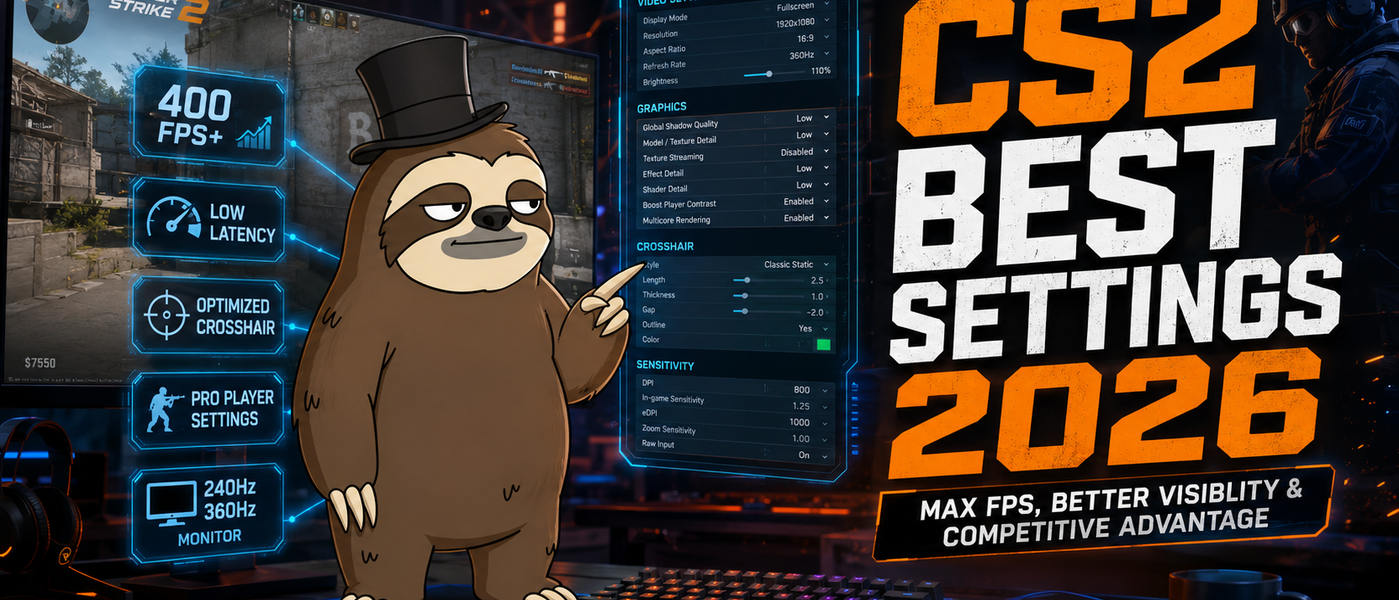
Resolution: 4:3 Stretched vs. 16:9 Native
Approximately 70% of professional CS2 players use 4:3 stretched resolution — most commonly 1280x960. This makes player models appear wider and can make targets feel easier to track, especially at close and medium range. The wider character models can also make them easier to hit with spray control.
The remaining 30% play on native 16:9 (typically 1920x1080 or 2560x1440), arguing that the wider field of view provides more map information and reduces the stretched appearance that some players find disorienting. donk and ropz are notable examples of elite players who prefer native. There is no universally correct answer — but if you are starting fresh, 1280x960 stretched is the majority consensus.
Regardless of aspect ratio: run your monitor at its maximum refresh rate. Most pros play at 240Hz or 360Hz. Higher frame rates reduce input latency and improve motion clarity. Match your in-game max FPS to your monitor refresh rate or uncap it entirely.
Video Settings: Exactly What to Set
Global Shadow Quality: High. This is not a mistake. Unlike most competitive games, CS2 shadows carry real gameplay information — you can see enemy shadows around corners before the player model is visible. Every professional keeps shadows on High for this reason.
Texture Detail: Low or Medium. Textures affect visual quality but have almost no impact on gameplay. Low textures reduce VRAM usage and can improve FPS on older hardware.
Boost Player Contrast: Enabled. This is one of the most important settings in CS2. It increases the contrast of player models against backgrounds, making enemies significantly easier to spot. Enable it immediately.
V-Sync: Off. Always. V-Sync introduces input lag that makes your mouse feel sluggish. If screen tearing bothers you, use your monitor's built-in G-Sync or FreeSync instead.
Motion Blur: Off. Always. This blurs the screen when you move, making it harder to track targets. Every professional has this disabled. There is no competitive argument for keeping it on.